Need to combine data from multiple sources — like Excel tables and SharePoint lists — into a single array in Power Automate? In this post, I’ll show you how to create a one-to-one relationship between non-relational data sources using a single Apply to Each loop, filter arrays, and a compose trick to build a clean JSON array for the next stage of your flow.
Data Sources
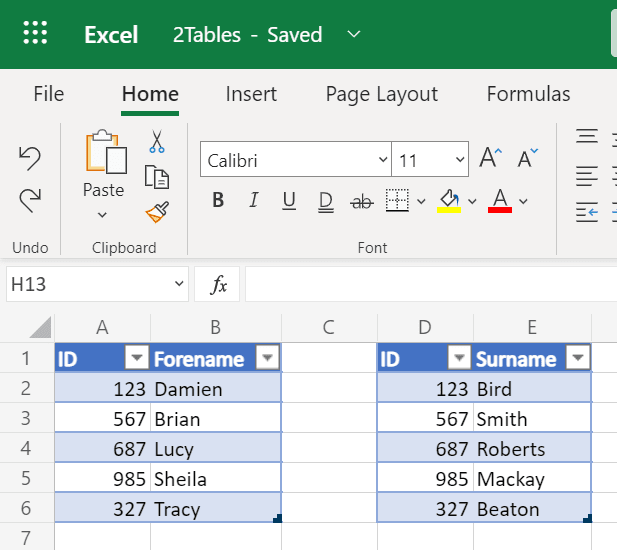
Excel Sheet contains two tables of data that are related by the ID
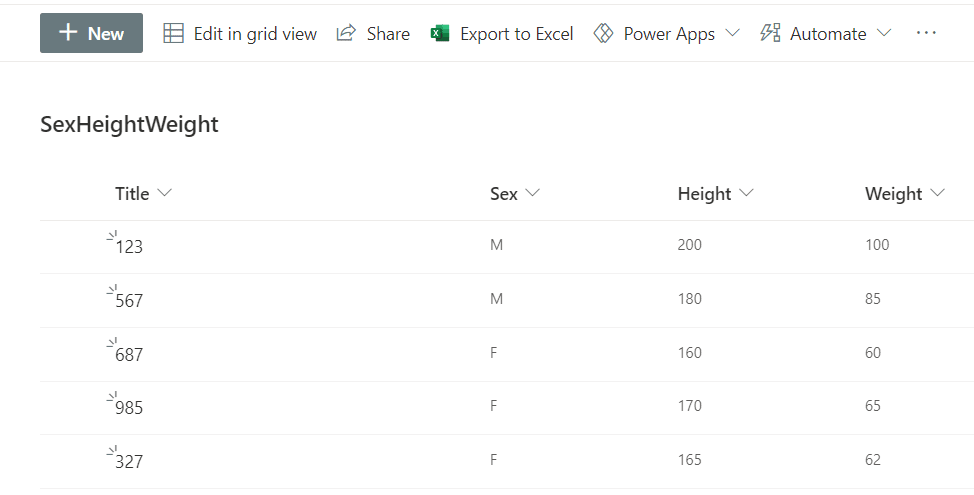
SharePoint List which shares the same Primary Key as the Excel Tables
Retrieving Data from Multiple Sources
So first thing is to retrieve the data from the various sources, using the above examples, this involves two List Rows Present in a Table for Excel and a single Get Items for SharePoint.
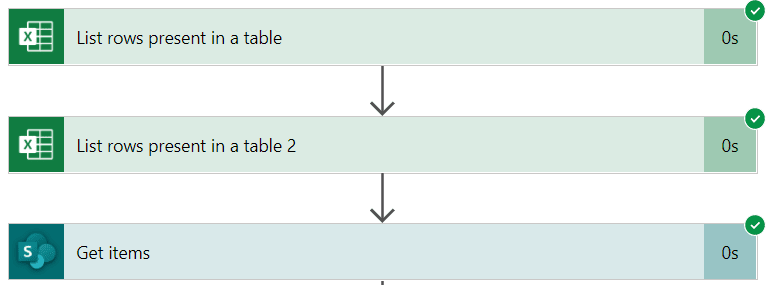
Retrieving data from various sources
Using Apply to Each with Filter Arrays
Then we use an apply to each on the main data source dynamic value which is a JSON array of all of the rows retrieved. In this case I have assumed it will by my first List Rows. We then perform a filter (FilterArray1Left2) on the dynamic value from the 2nd list rows and compare the primary key, known as ID from the apply to each with the ID of that of the item being compared. This will identify the row(s) that match, albeit if there is more than one, I will assume the first later on - hence 1 to 1 relationship.
Filtering the SharePoint List
Then for the second filter (Filter1Left3) on the SharePoint List, I perform the same steps. The from is the dynamic value from the 3rd source (SharePoint List rows) and again we compare the primary key, known as ID from the apply to each with the Title column of the SharePoint List.
Composing the Combined Object
The final stage is a compose action where we create a new object for our array with the new keys and values combined for that single loop and you will see that were there is not a dynamic value, we must create an expression. I have also used the expression first() to assume the first returned match within the filter array as I have based this on 1 to 1 relationships.
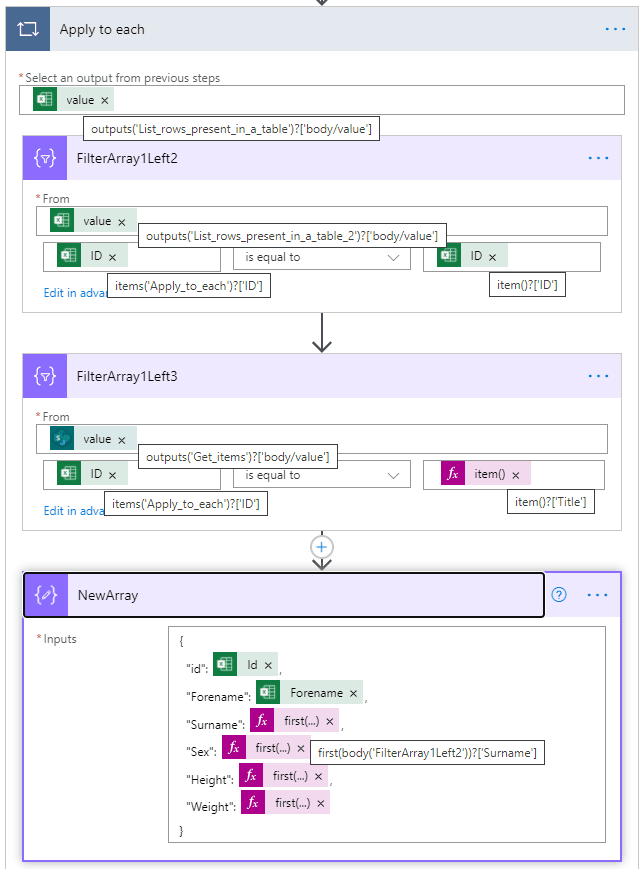
The Apply To Each Loop
Building the Final Array
The final stage of the process is a compose action to bring all of the objects together to form an Array. I saw this trick on SharePains.
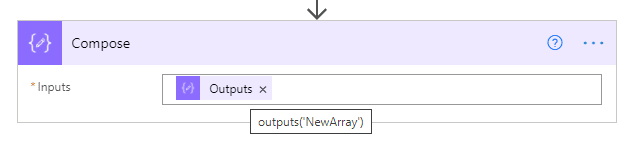
Output(‘NewArray’)
The final result from the Flow is an array of the 1 to 1 relationships between the three data sources:
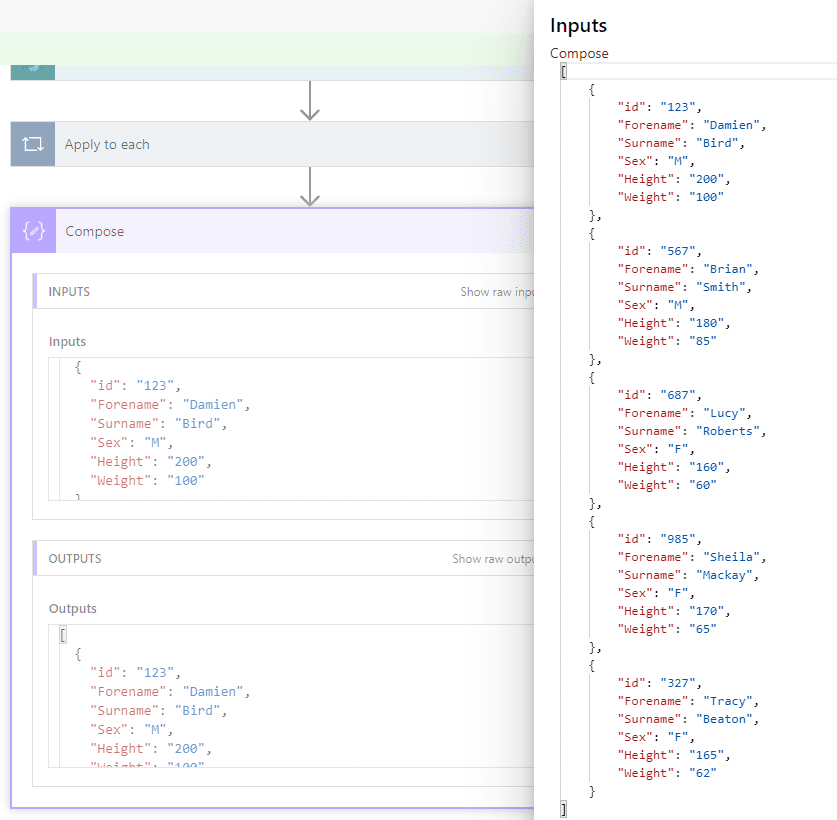
Array of 1 to 1 Relationships
Performance Tips
I have seen many attempts where there is an apply to each within an apply to each and this adds to complexity, confusion and extended runtimes. For each data source you want to include in this relationship, you can simply include a filter array and create your own complete array of data. Turn on concurrency and you can go from several minutes to a few seconds. I first attempted this problem on the community platform here.